Everything on the grown-ups' side
The Parent Area is where you see how each child is doing, find out what to practice at home, and change anything about their app. Here's all of it, one screen at a time — plus what each of the fifteen games teaches.
Part 1 — The Parent Area
One place for grown-ups: how the week went, what to work on, and every setting for every child.
Getting in
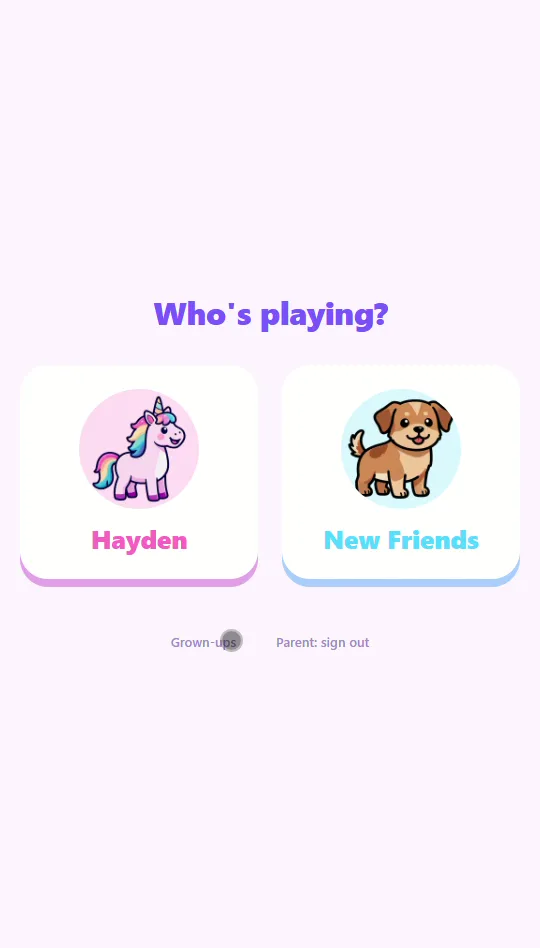
At the bottom of your children's players screen there's a small, deliberately boring Grown-ups link, and each child's games page has a Parent area link at the top. Tapping either asks you one easy math question, written out in words, like “What is three plus four?”, so a child who can't read yet can't pattern-match the numerals. Type the answer on the keypad and tap the tick.
Get it wrong and you get a fresh question. After three misses in a row the keypad pauses for 30 seconds, then you can try again. Passing is remembered for that browser session only: close the browser and the next visit asks again.
Inside, the first thing to do is add a child. A name is all that's required — the avatar is optional, and the picker suggests one no sibling has taken yet. They can play the moment you tap Add child. Add as many children as you like; each gets their own progress, artwork and avatar, at no extra cost. Once you have one, the form tucks away behind a + Add a child button at the top of the page.
Reading the dashboard
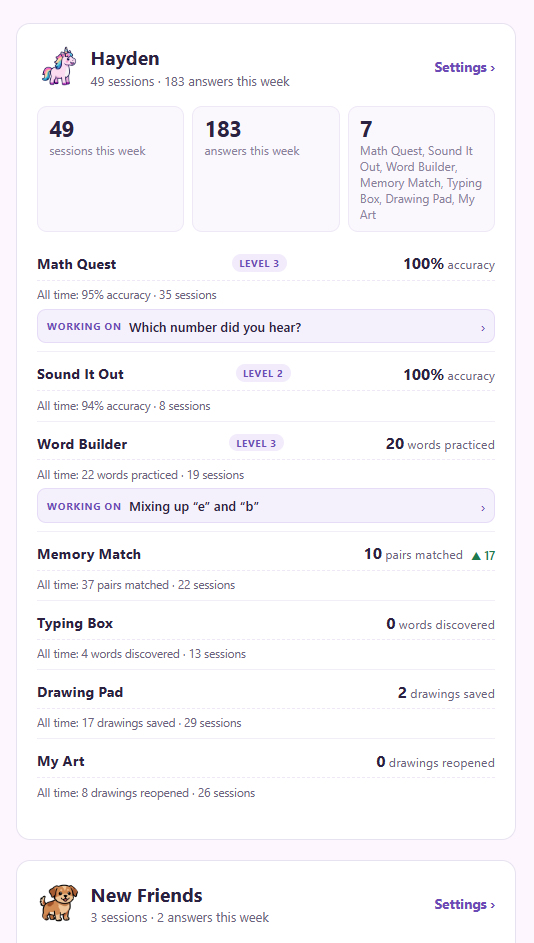
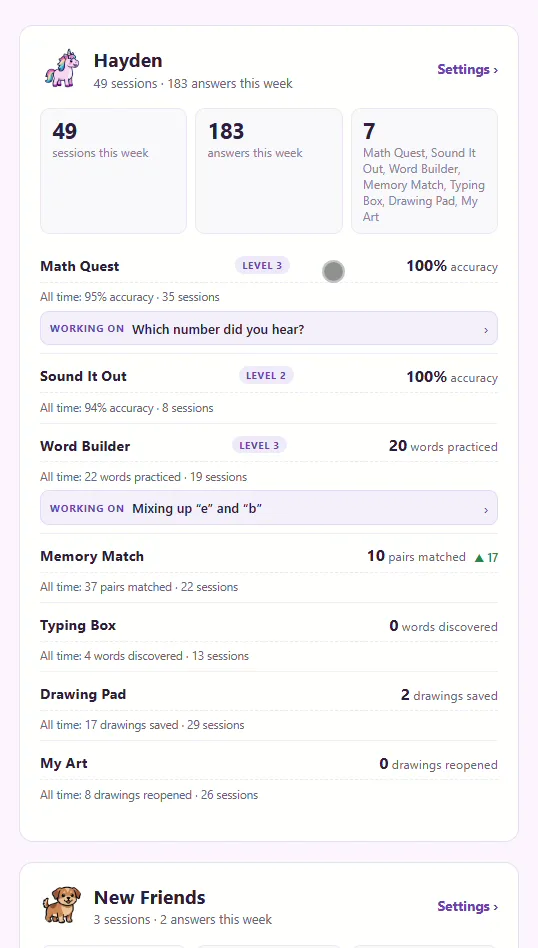
Every child gets one card, and it answers a single question: how are they doing this week? The cards start folded, showing each child's name, this week's sessions and answers, and what they're working on; tap a child to open the full card. It's entirely read-only — the only thing to tap is a game row, and the Games & settings › link in the corner.
- Sessions this week How many times they opened a game in the last seven days.
- Answers this week Every question they answered that had a right or wrong to it, across all the games, in those same seven days.
- Level pills The level they've reached in a game that has levels, like Level 3. It never goes backwards.
- Trend arrows A green ▲ or a red ▼ next to a number — how many percentage points their accuracy in that game moved compared with the week before.
- Second line Under the headline number, each game shows a second line of detail — for Money Quest that's jobs done, and money earned and spent.
- All time The same headline number for their whole history, plus how many sessions they've played in total.
- Working on A one-line summary of the thing they're currently finding hardest. Tap it to open the practice tips.
Trends and trouble spots only appear once there's enough data for them to mean something. A trend arrow needs real play in both weeks before it will show — otherwise a single good afternoon would read as “improved 100%”, which isn't true. And a “Working on” line needs a pattern of misses rather than a handful of slips.
So a quiet card in the first days is normal, and it's not broken. It's the app declining to guess. Keep playing and it fills in.
Practice tips: what to work on tonight
This is the part that does the work for you. Tap any game row on a child's card and a panel slides in with what they're actually struggling with — no chart to decode, no scores to interpret.
- Watch for A recurring mix-up, named in plain words — Mixing up “9” and “6”. It only appears when the same swap has happened more than once, so it's a habit, not a slip.
- Trouble spots The specific items they miss most, with the tally — 3 + 4 · should be 7 · answered 8 · missed 3 of 5. Up to five of them, worst first.
- How it's going Six weekly bars of percentage correct, with a gap for any week they didn't play.
- Try this together One plain practice tip, written for the thing they're actually missing — like counting backwards from the bigger number when subtraction is the sticking point.
That's the whole idea: the app tells you exactly what to practice at home. Not “work on math” — the two numbers they keep confusing, and one thing to try over dinner.
These tips exist for the games that record which particular item was missed — Math Quest, Sound It Out and Word Builder. The other games show as plain rows with no panel behind them. And until there are enough tricky moments to see a pattern, the panel says so honestly rather than inventing one.
Each child's settings page
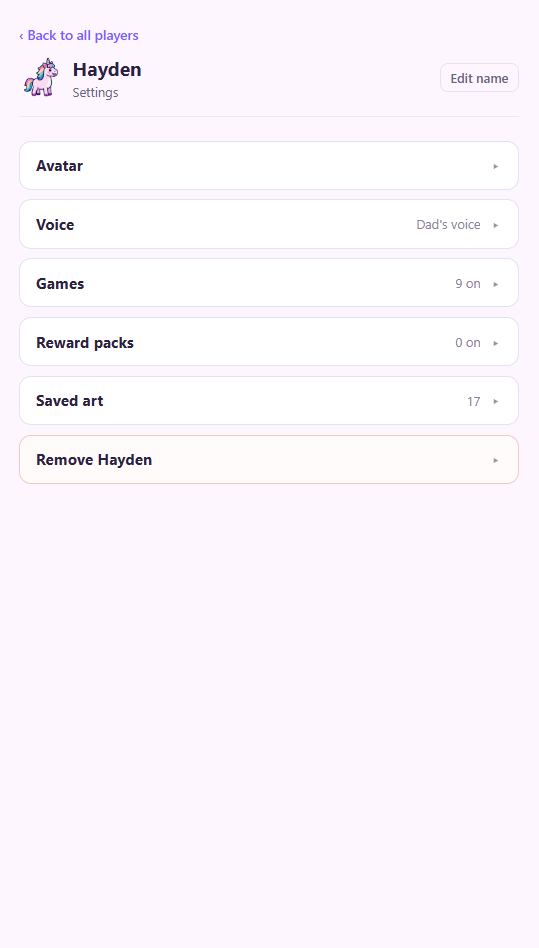
Everything you can change for a child lives on their own settings page, which you reach with the Games & settings › link on their dashboard card. The dashboard shows you how they're doing; this is where you adjust things.
It's six collapsed sections — avatar, voice, games, reward packs, saved art, and removing the child — and the rest of this guide walks through each one in that order. You can also rename a child from the top of this page with Edit name.
Avatars & celebrations
Tap Avatar and pick a character. It's who your child is in the app: their face on the players screen, and on their settings card here.
It also does something you don't have to set up. Every child automatically gets celebration animations starring their own avatar — the little cheer that plays when they get something right is that character. Change the avatar and the celebrations change with it. There's nothing to tick and nothing to buy; it just follows whoever they picked.
Reward packs
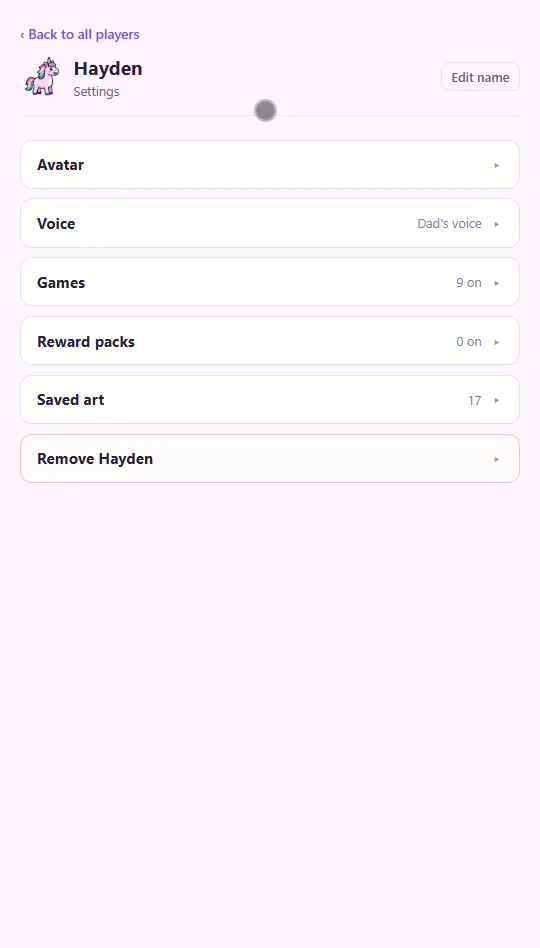
Reward packs are additions, not a setup step. Your child's own character already celebrates with them, always, and that can't be switched off — which is why you won't find their own character in this list.
If the celebrations start to feel stale after a few weeks, tick a couple more packs here and those animation sets get mixed into the rotation alongside the avatar's own. Untick them and you're back to where you were.
Nothing ticked is a complete, working state. If you never open this section at all, your child still gets celebrations every time they get something right.
Voice
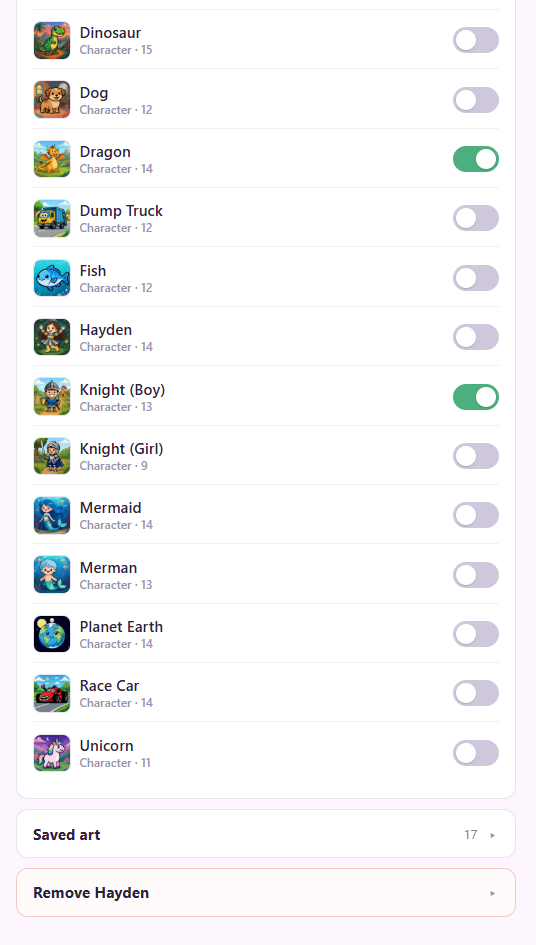
Choose who reads your child's games out loud: Mr. Nick or Mrs. Elizabeth. It applies everywhere the app speaks — the words, the letter sounds, the encouragement.
These are real recorded human voices, not synthetic ones. Each child can have a different one, and switching takes effect straight away.
Games & starting levels
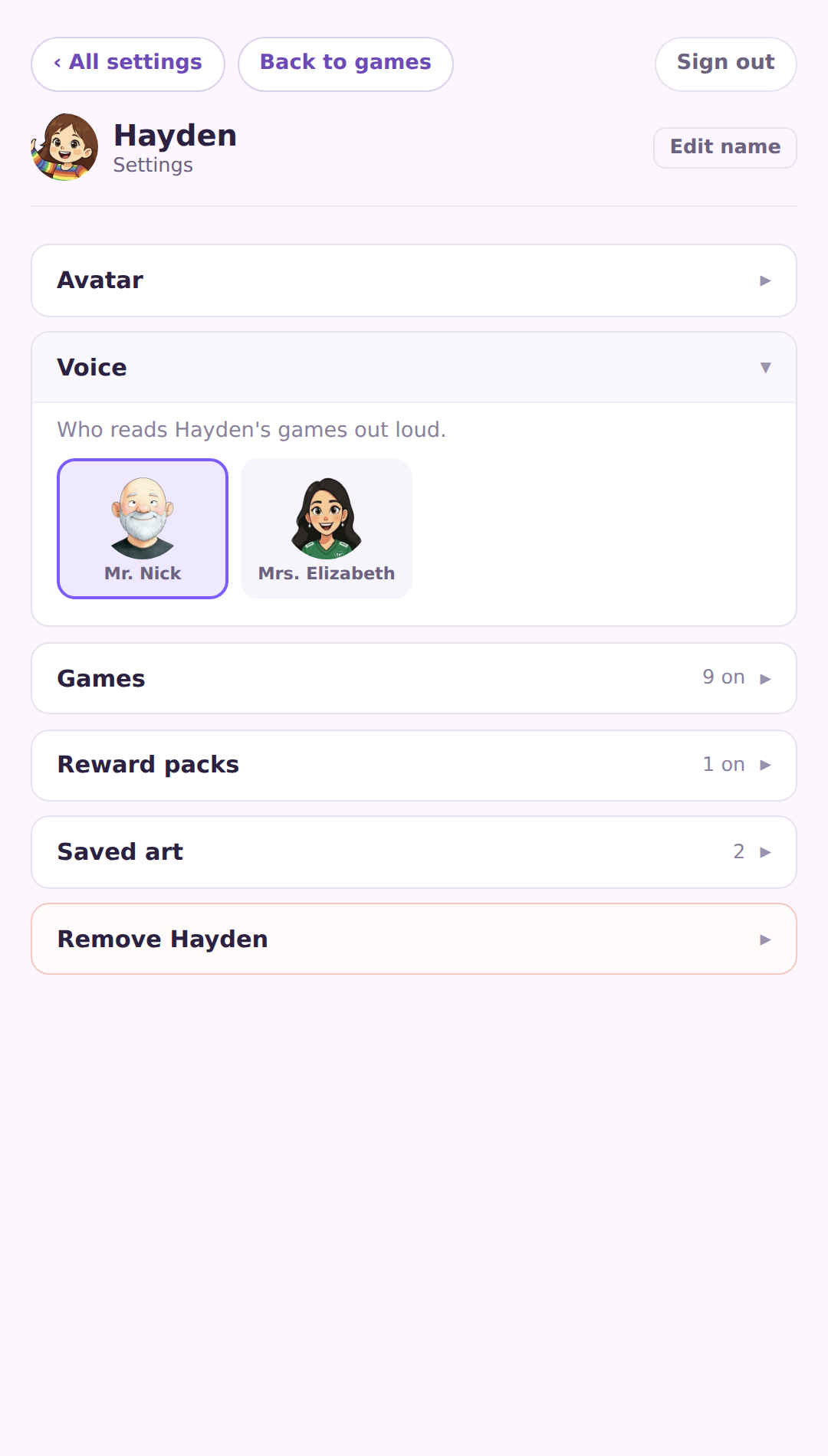
The Games section has a switch for every game. Turn one off and it disappears from that child's home screen — useful when a game is a distraction, or simply too old or too young for them right now. Turning it back on returns it exactly as it was.
Underneath a game that's switched on you may also see Start at level. That's for a child who doesn't need the early material: set it and the later levels open immediately, without them having to work through the beginning first. The line below it tells you the level they've already reached, and says plainly when your choice would change nothing because they're already past it.
It never removes progress they've already earned. The start level is a floor, not a position: the game always opens at whichever is further along, what they've earned or what you set. You cannot demote a child with it.
Only the games that lock their levels get this control — Math Quest and Sound It Out. Word Builder has three levels but has never locked them: every level there is always tappable, so there's nothing to open early.
Saved art
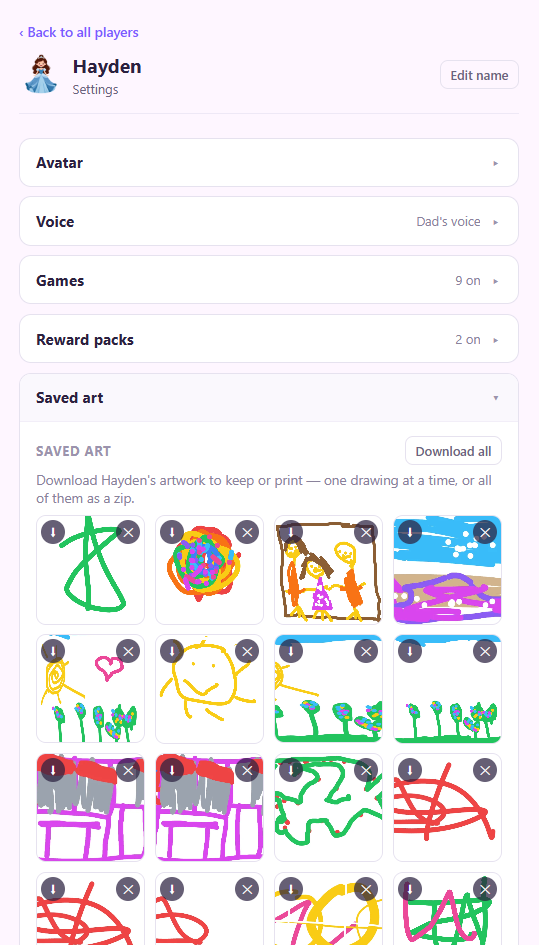
Saved art shows everything that child has drawn and saved. The section header carries the count, so you can see at a glance how much is there without opening it.
Each drawing has a small download button in its top-left corner, which saves that one picture — handy on a tablet, where press-and-hold to save is unreliable. Download all at the top of the section packages the whole gallery into a single zip, named after your child, with each file dated. If any drawing can't be fetched, the zip still downloads and the app names what's missing rather than quietly handing you a short one.
What you get, either way, are the saved web-sized images — the same pictures the app stores and shows in your child's gallery, ready to keep or print.
Each tile also has a ✕ to delete that drawing, and deleting one here is permanent— this is the only place in the app where a saved drawing can be removed, which is deliberate: there's no delete button on the kid's side, so a child can't erase their own work in a frustrated moment.
Removing a child
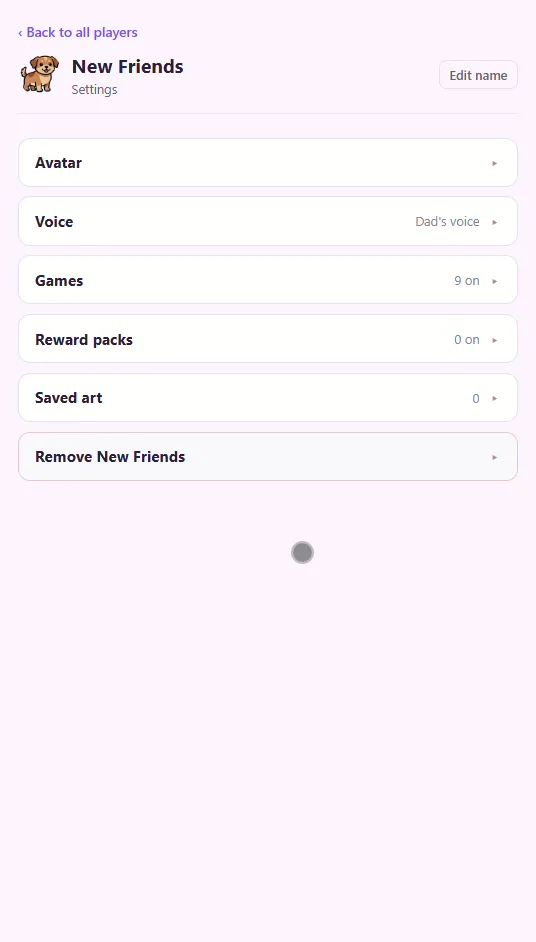
The last section on a child's settings page removes that child from your account. It sits on its own at the bottom, and it's the one action here you cannot take back.
Removing a child deletes that child's profile, all of their progress, and all of their saved artwork, forever. There is no undo and no recycle bin, and support cannot restore it. If there are drawings you want to keep, download them first — see Saved art above.
Your other children, and everything they've made, are untouched.
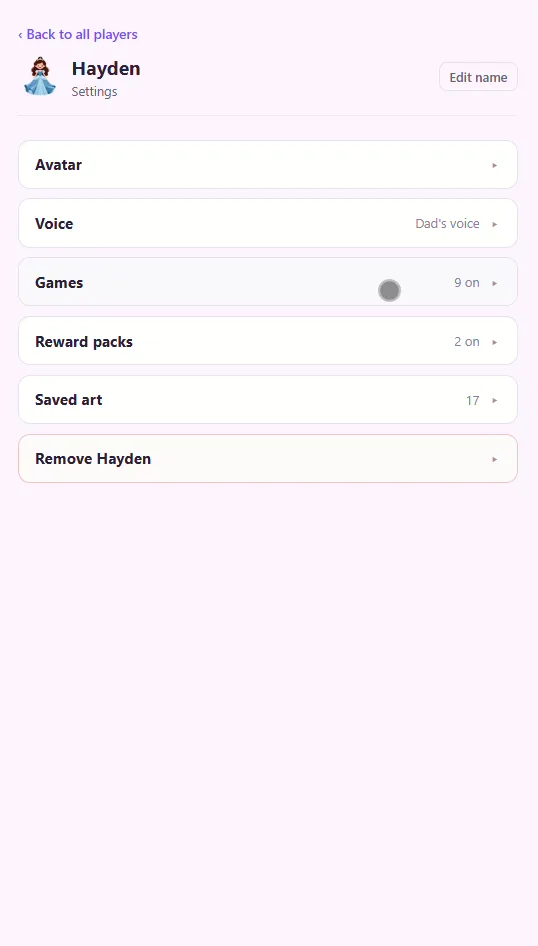
As the clip shows, there are two gates rather than one. You open the confirmation, and then you have to type the child's full name before the remove button will do anything. A stray tap can't get through that, which is the entire reason it's there. Capitalisation doesn't matter — it's a “did you mean it” check, not a spelling test.
Accessibility
If a device has Reduce Motion turned on — the iOS setting, or the equivalent on Android, Windows or a Mac — the celebration animations are quieter and stiller, and the app avoids movement it doesn't need.
That's by design, not a bug. Nothing is broken and nothing is missing: your child still gets told they did well, and still earns everything they would otherwise. If you'd rather have the full animations back, turn Reduce Motion off in the device's own accessibility settings — there's no switch for it inside the app, because the app should follow what the device already asked for.
Account & billing
These live at the bottom of the main Parent Area screen, below your children's cards.
Your password is what you sign in with, along with your email. Tap Set or change password to choose a new one. Saving it keeps the device you're on signed in; any other device you're signed in on, including the kids' tablet, will ask for the new password. Forgot it? Tap Forgot or never set a password? on the sign-in page and we'll email you a link to choose a new one.
Your account shows the email address you sign in with, and lets you change it. Tap Change email, enter the new address, and we'll send a short code to it. Typing that code confirms the address is really yours. We also send a note to your old address letting it know the change happened.
Billing is the only place in the app that talks about money — there's nothing about it on any screen a child can see. It tells you where you stand (on trial, subscribed, or ended), when the next renewal falls, and gives you one button through to manage or cancel it. Cancel and it says plainly that you won't be charged again.
The games lock, and your children see a gentle “ask a grown-up” — never anything about money. But Drawing Pad and My Art always remain available, because a child's own drawings are never held hostage to a card that expired.
Saved art stays viewable and downloadable in line with our retention policy: after a paid subscription ends, artwork is kept for six months so you have time to sign in and download it. See the privacy policy for the full detail — including how to have everything deleted straight away instead.
The fifteen games
What each one teaches, how its levels work, and the one thing worth watching for at home. Every game can be switched on or off per child — see Games & starting levels.
Math Quest
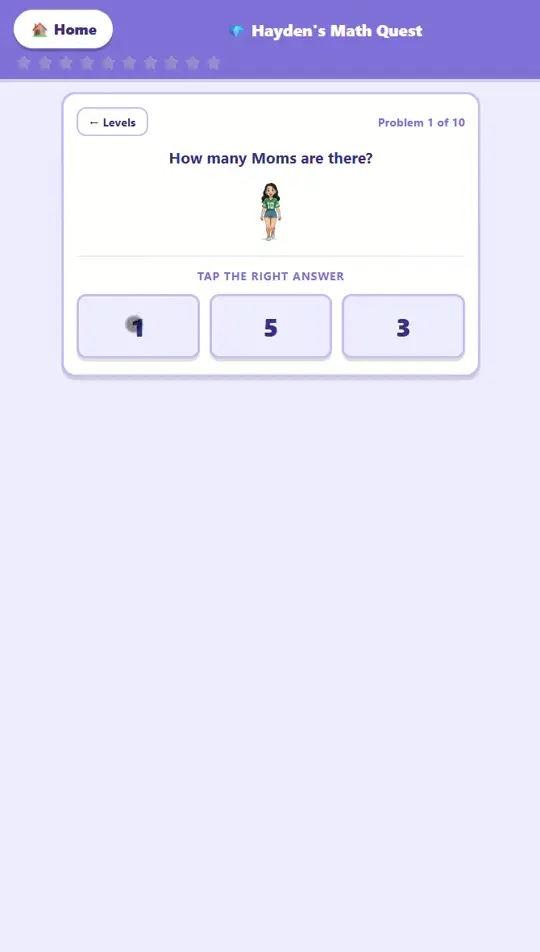
Numbers, in the order they actually build: recognizing them, then counting things, then adding and subtracting — first up to 10, then up to 20. Ten tap-the-answer problems a round.
Levels: Seven — Recruit (recognizing numbers 1–10), Apprentice (counting to 10), Gem Seeker (addition to 10), Gem Collector (subtraction to 10), Gem Master (addition to 20), Champion (subtraction to 20), and Legend (mixed, to 20).
What to watch for at homeLevel 1 is spoken, not shown — a child hears “seven” and finds it, because recognizing a number by ear and by sight are two different skills. If they stall there, count things out loud together before you worry about the written numeral.
Shape Quest
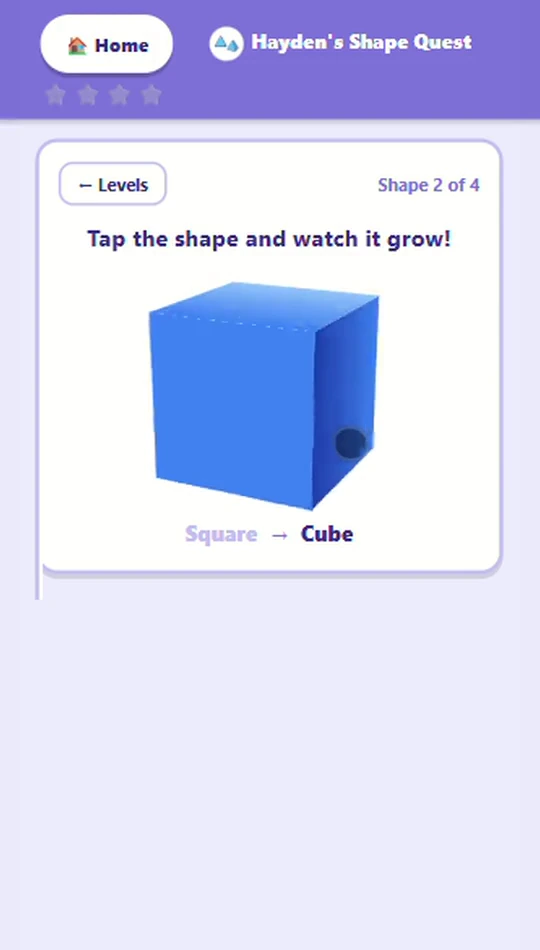
Flat shapes first — circle, square, triangle, rectangle — then the solid each one grows into, then where those solids turn up in the real world.
Levels: Three — Flat Shapes (find the flat shape by name), Shapes Grow Up (watch each flat shape become its solid, then say which flat shape a solid came from), and Shapes in the World (meet the cone and the cylinder, then find all six solids in real things).
What to watch for at homeLevel 2 opens with four watching beats that carry no stars, because watching isn't a test. The growing animation is the lesson — if your child wants to see a shape grow again, let them; there's a button for exactly that.
Memory Match
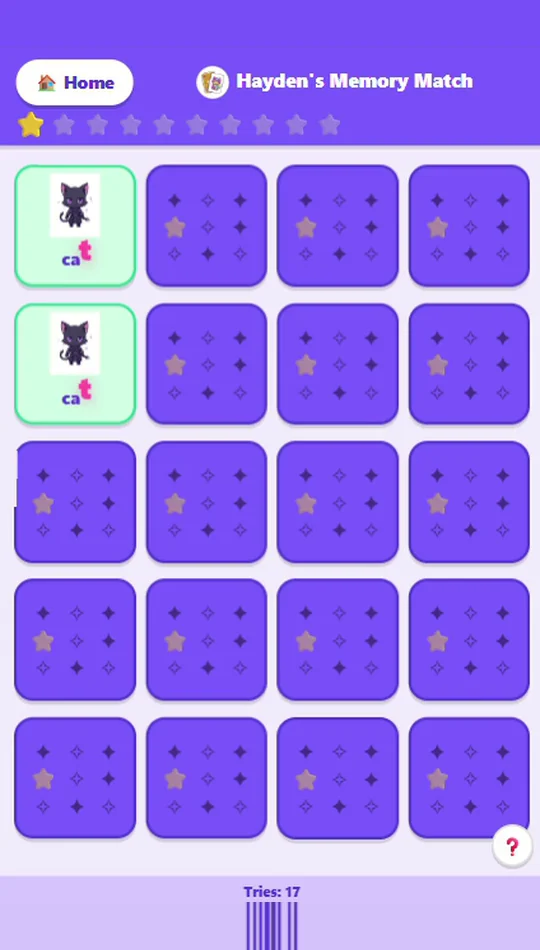
Matching pairs on cards that carry both a picture and its word. Every match is followed by the app reading the word and spelling it out, letter by letter, with each one lighting up.
Levels: No levels — one board, find them all. No timer and no move limit.
What to watch for at homeThe matching is the hook; the spelling is the teaching. If your child taps straight past the spell-out, sit with them for a round and say the letters along with it.
Word Builder
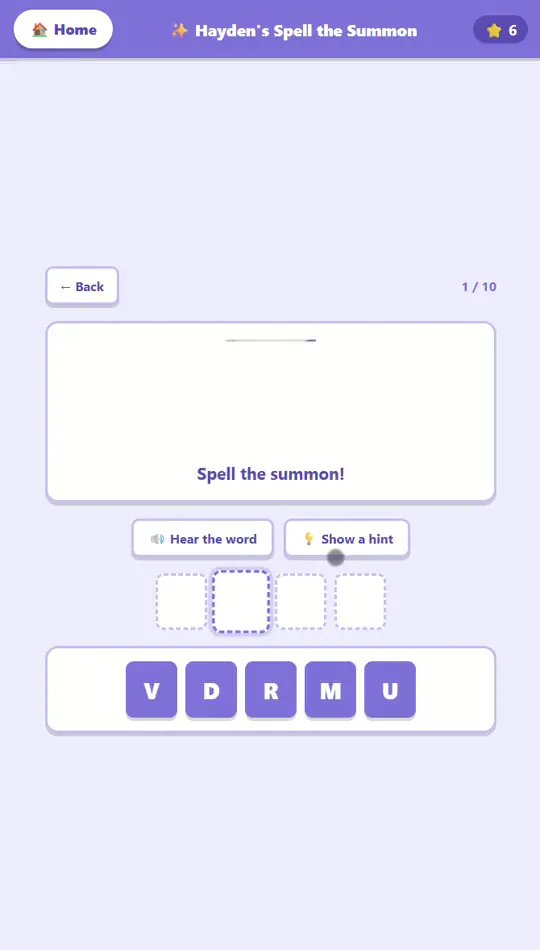
Dragging scrambled letter tiles into place to build a word. Each slot only accepts the right letter, so wrong guesses bounce off with no penalty.
Levels: Three, and all three are always open — Starter (3-letter words), Builder (4 letters), and Word Master (5 letters). From level 2, decoy letters are mixed into the tray so the word can't be built without reading it.
What to watch for at homeThere's a hint that points to the next letter, and it costs one of the three stars. If a child is spending it every round, drop back a level for a few days rather than pushing through.
Word Search
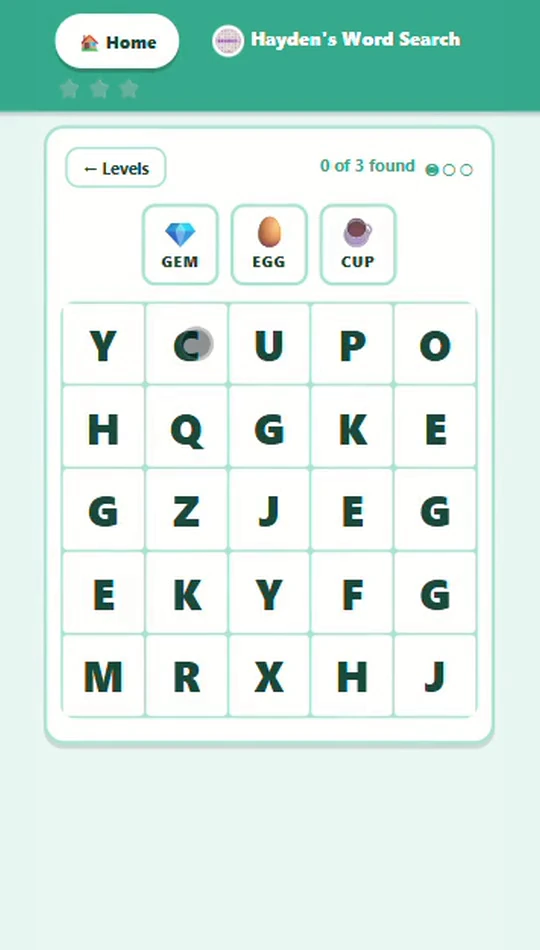
Finding words hidden in a grid of letters. Levels 1–3 show each word as a picture with its letters beside it and say it aloud, so a child who isn’t reading yet can still play; levels 4–6 give a plain word list instead.
Levels: Six — First Finds (two 3-letter words in a 4×4 grid, left to right), Across & Down (three words, now downwards as well), Bigger Words (four-letter words in a 6×6), Word List (themed words and the first diagonals), Puzzle (a 9×9 with diagonals both ways), and Challenge (nine words in a 10×10, every direction including backwards).
What to watch for at homeA word can be selected three ways: tapping each letter in turn, tapping the first letter and then the last so the ones between fill in, or dragging across them — a child fighting the drag on a small screen usually does better tapping. A drag is judged as soon as it is released, while a run of taps is left to grow until it matches or outgrows every word still hidden, which is what lets a child spell one out slowly. There is no timer and nothing to lose, so a stuck puzzle can simply be left. Tapping any word in the list says it aloud, so the themed levels still work for a child who is only starting to read. For an older player, the Grown-up look swaps the cheering for plainer praise, and you can set a starting level so nobody replays levels they have outgrown.

Sound It Out
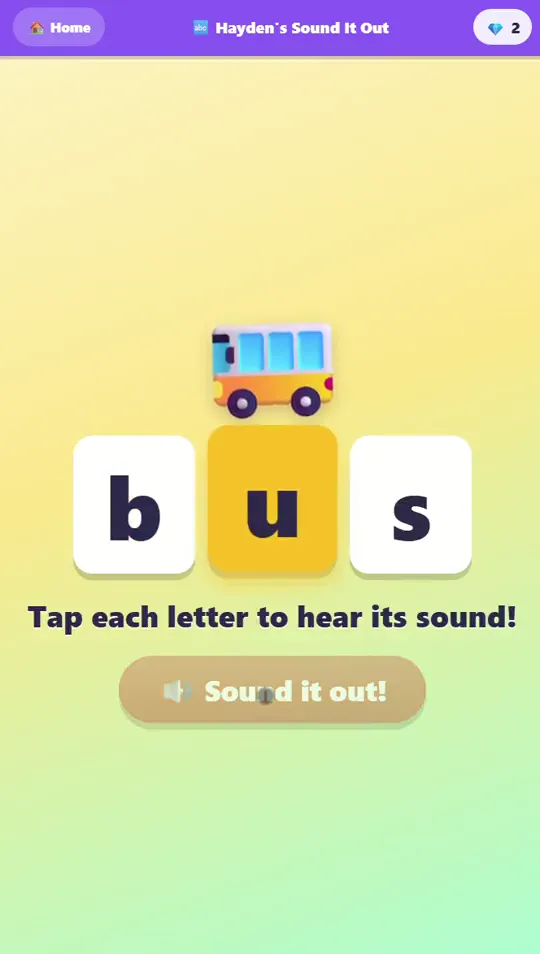
Early phonics on short words like “cat” and “bus.” Tap any letter to hear its sound, hear the sounds swept out in order, pick the picture the word names, and then build the word back from scrambled letter tiles.
Levels: Three. Look and Listen (the picture is there while they decode, and the sounds are blended into the word for them), Blend It (no picture, and the word itself is never said, so putting the sounds together is the question), and Spell It (they hear the word and nothing else, then build it from letters). The answer picture stays hidden during the choice at every level, and every word ends by being built back from letter tiles.
What to watch for at homeEvery word ends with dragging the letters back into place, each one saying its sound as it lands. A wrong tile just bounces back, and from level 2 there are spare letters, so dropping tiles in order stops working. At home, stretch the sounds slowly rather than saying the whole word for them.
Trace Quest
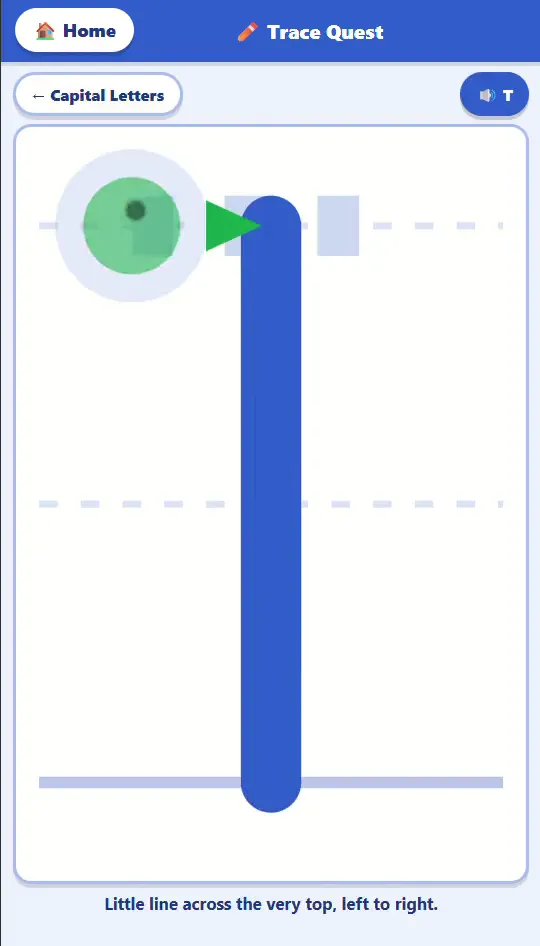
Writing capital letters and numbers the way they're actually formed — starting in the right place and moving in the right direction.
Levels: Five sections rather than levels: My Words (your child's own name, plus MOM and DAD), Capital Letters, Numbers, Short Words, and Longer Words. Nothing is locked.
What to watch for at homeThe only rule it enforces is where the finger goes down; the line can wobble as much as it likes, and the game has no opinion about neatness. It's the rung below the pencil, not a replacement — keep doing the real writing on paper too.
Typing Box
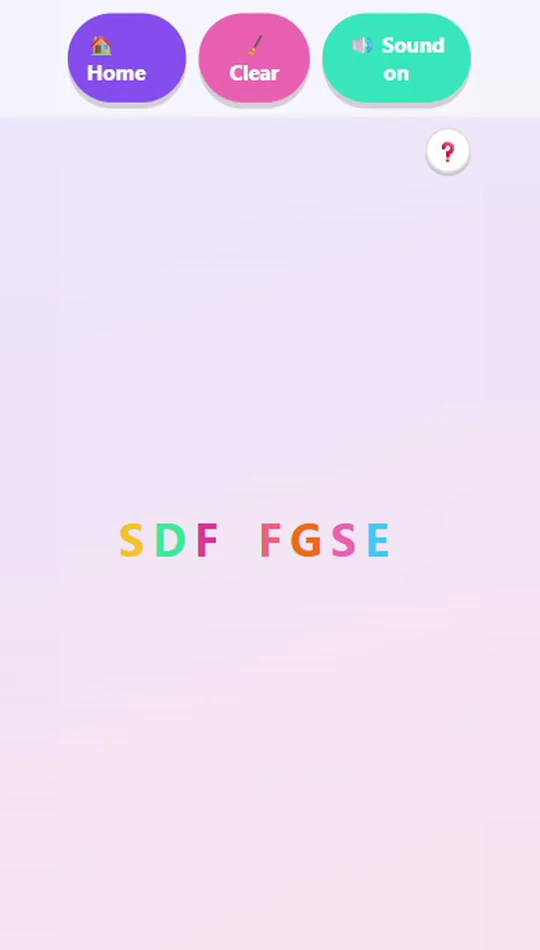
Letter names, through a keyboard and nothing else. Press a key and a big colorful letter appears and says its name. Type a real word and the box reads it back and celebrates.
Levels: None — there's one screen, and no instructions on it at all.
What to watch for at homeThe surprise is the point: nobody tells a child the keyboard can make words, and the moment they find out is the moment it clicks. Please don't spoil it — let them discover it mid-mash.

Money Quest
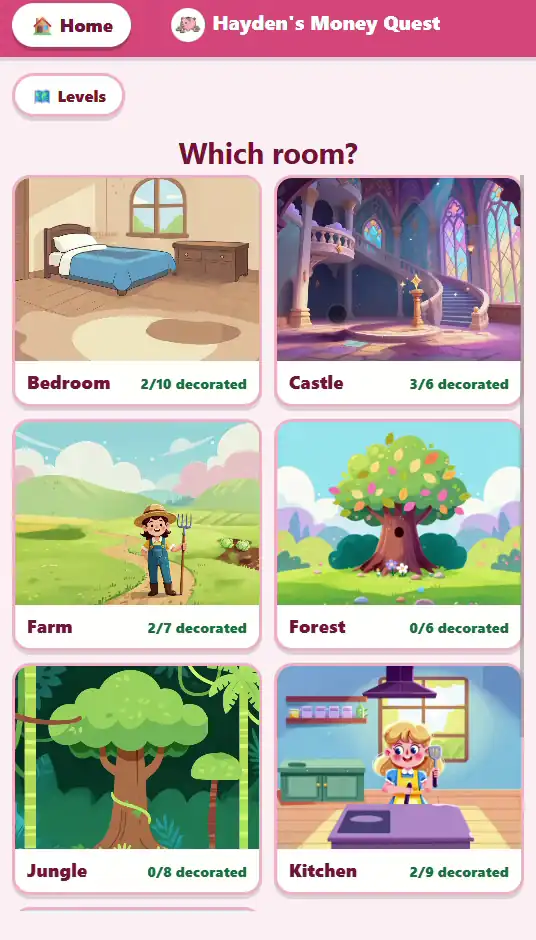
One idea: money is earned, spending makes it go away, and you have to choose. A round starts with one dollar; every dollar after that comes from a quick math, spelling, or sounds “job”. Harder job, more pay. Plenty of rooms to decorate, and one piggy bank shared across all of them.
Levels: Three — Know Your Money (find the coin or bill by name), The Shop (earn and spend on the rooms), and The Card, at level 3, where paying by card visibly spends the child's own “money.”
What to watch for at homeNothing is ever shamed and there's no wrong thing to buy — running out just means doing another job, and a job is never failed, only retried, with the pay never docked for a wrong answer. Whatever isn't spent carries over plainly, with no bonus and no interest. It's all “funny money”: there are no in-app purchases anywhere.
Calendar Quest
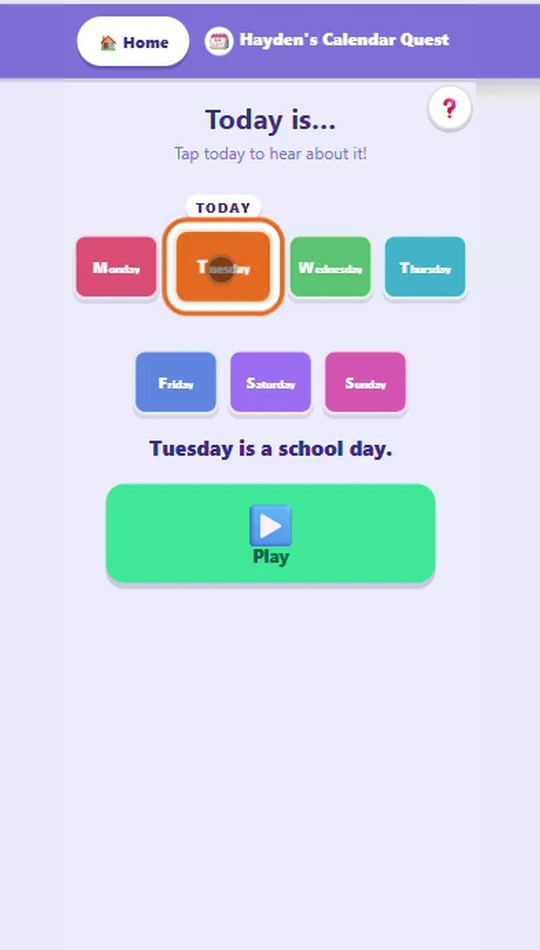
The seven days of the week — their order, which one comes next, and which ones are school days. It opens by telling your child what today is, out loud.
Levels: Three — Day Order (drag the seven days into order), What Comes Next (which day comes after, or before), and School Day or Weekend? (sort each day into its bucket). Months aren't here yet — they're coming next.
What to watch for at homeNothing here needs reading. Every day tile speaks its own name when tapped, on every screen, and each day keeps one fixed color throughout, so the same tile is recognizable from the opening ritual to the last level. The two buckets are only ever called “school day” and “weekend day” — never anything about leaving the house, since that isn't every family's week.

Space Quest
How far away the Moon is, why it changes shape, how big the planets and the Sun are compared to Earth, and where we are in the Milky Way. It’s an exploring game, not a quiz — there’s no score, and everything a child taps is spoken aloud.
Levels: No levels — four rooms, open in any order. Nothing to unlock and no score.
What to watch for at homePick a room from the Space Map. Tap any planet or moon to see its real photo and hear a fact. In the Moon room, drag the planets into the gap; in the Solar System, tap the turtle to slow things down and pinch to zoom in.


Look and Learn
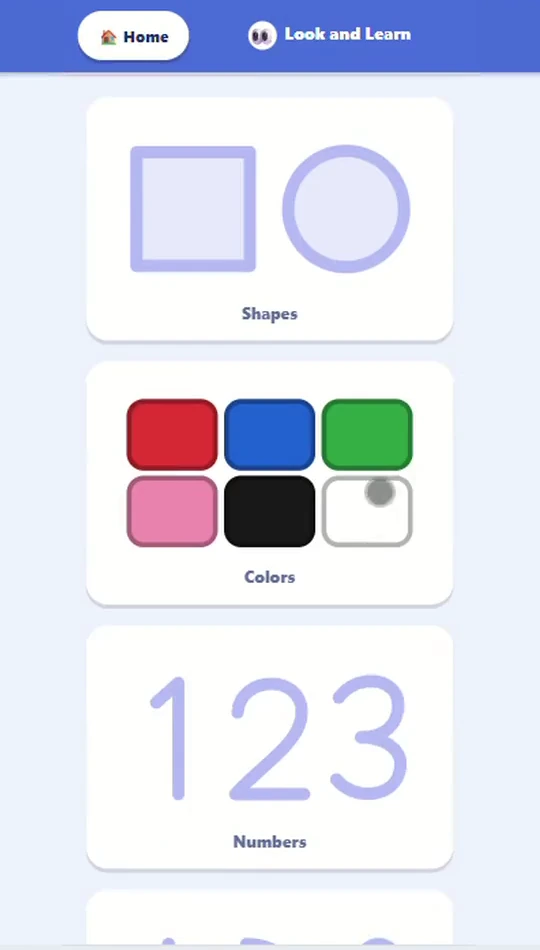
One thing at a time, shown big and said out loud: shapes, colors, numbers, letters, and animals. Each lesson names the thing, shows what makes it that thing, says the word (and spells it, for shapes and animals), then invites your child to say it.
Levels: No levels. Five packs, open in any order: Shapes (square, circle, triangle, rectangle, oval, heart, diamond), Colors (red, blue, green, pink, black, white), Numbers (1 to 5), Letters (A to E), and Animals (cat, dog, cow, duck, fish). Every lesson ends with a quick check: two pictures, and find the one it just taught.
What to watch for at homeAfter “Can you say square?” the game goes quiet for four seconds. That pause is for your child to say the word out loud, so say it with them the first few times. A wrong tap in the check is never called wrong: the game names what they tapped and shows the right one again.
Build Quest
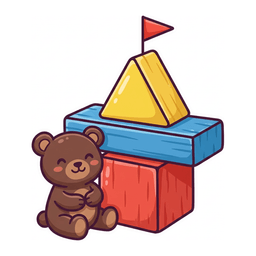
Building, testing, and fixing: what makes a tower stand up. Your child builds with blocks, triangles, and planks, then tests the tower with gravity, a teddy bear, or a shake, and sees what holds.
Levels: None. One building table, with a flag to aim for. Nothing to finish and no score.
What to watch for at homeWhen a tower falls, watch the slow-motion replay together: it glows on the piece that gave way first. Ask what they'd change, then put the tower back and try again. The fall is the interesting part, not a mistake.

Drawing Pad
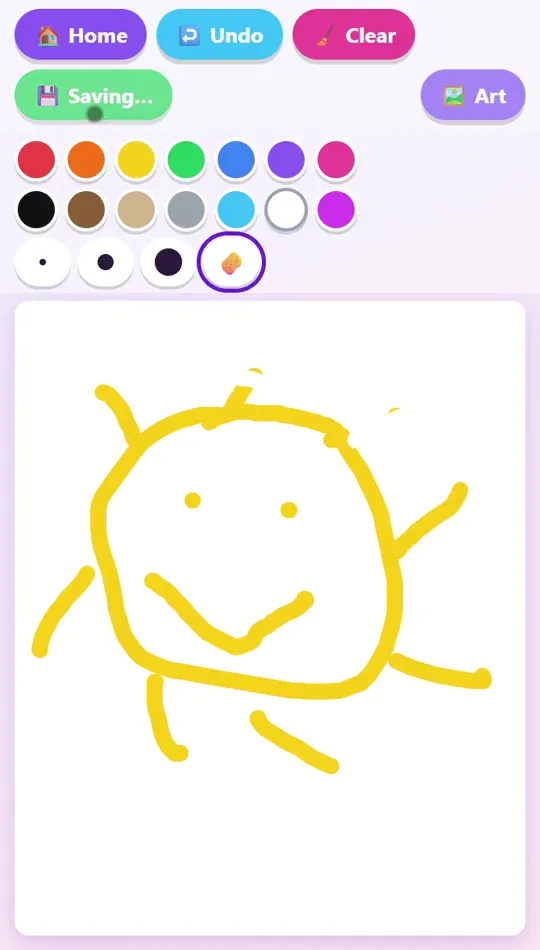
A clean canvas with fourteen colors, three brush sizes, an eraser, undo, and a big save button. No prompts and no coloring-book lines to stay inside.
Levels: None — open-ended, with no right answer and nothing to finish.
What to watch for at homeEvery save makes a brand-new picture, never an overwrite, and opening an old drawing to build on it saves as a new picture too. Nothing a child does here can erase what they've already made.
My Art
Every saved drawing in your child's own gallery, newest first, on any device you sign into. Tap one to open it back up and keep working on it.
Levels: None — just the gallery.
What to watch for at homeThere's no delete button on the kid's side, on purpose: a four-year-old in a frustrated moment shouldn't be able to erase a month of their own work. Pruning lives in the Parent Area, behind the grown-ups gate.
Still stuck?
The design choices behind these games — the missing timer, the endless try-again, the picture that disappears — each rest on published research, summarised in plain English with the actual papers.